


Follow these steps to connect your Adyen account with Chargebackhit for automatic dispute representment.
Step 1. Sign in to Adyen
- Go to the Adyen live Customer Area.
- Sign in to your Adyen Live account.
- Perform all the steps below separately for each merchant account under your main account for which you want to enable automatic dispute representment.
Step 2. Provide account and business information
Provide the Adyen account and your business information for the setup:
- Share the Adyen merchant account name
- Complete
Guide
Business details contain your company information, policies, and supporting data for representment. Business details
If you have multiple accounts, provide this information to the Chargebackhit support team.
Step 3. Create API credentials
Generate API credentials to allow Chargebackhit to access your Adyen account.
- In the Adyen live Customer Area, navigate to Developers > API credentials.
- Click on Create new credential.
- Select Web service user.
- In the Description field, enter Chargebackhit.
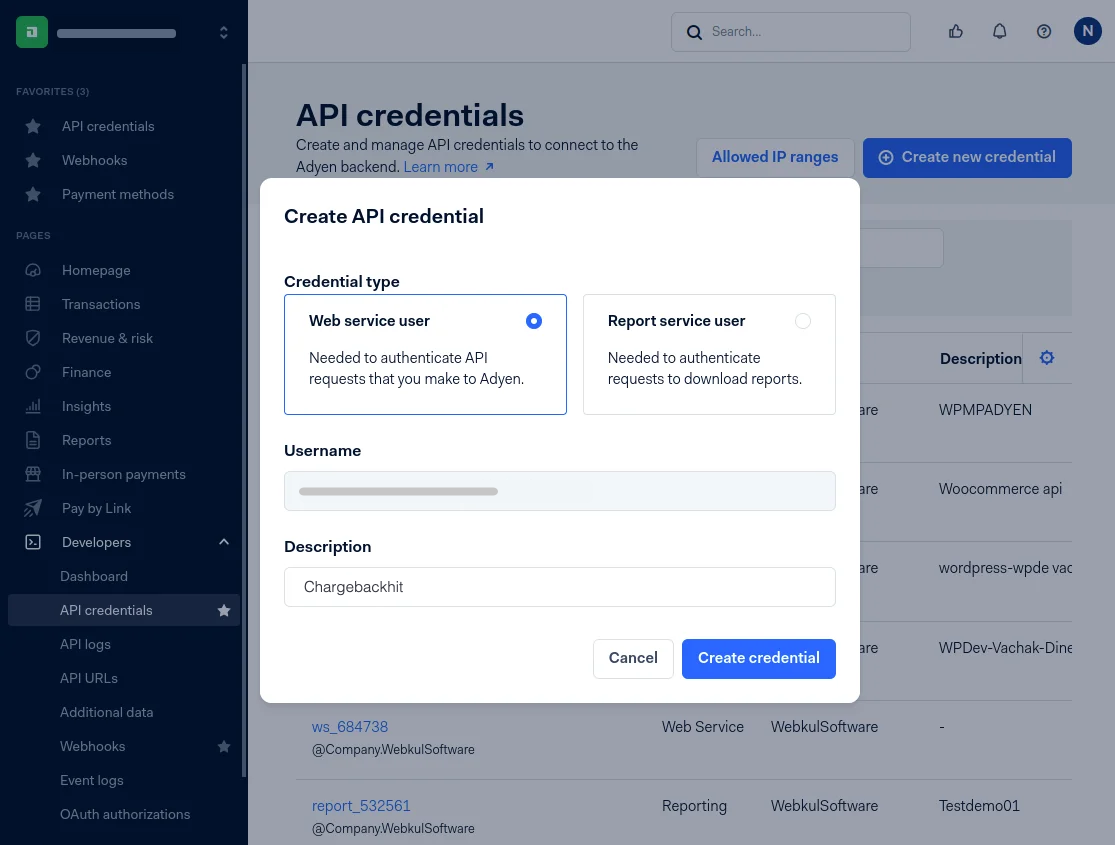
- Copy the API key and save it in a secure location.
Step 4. Configure API permissions
Set the required permissions to enable dispute management.
- Go to Developers > API credentials.
- Find the newly created API credential.
- Under Uncategorized, select API: Dispute management.
- Ensure the Company account and all associated merchant accounts are selected.

- Click on Save changes.
Step 5. Provide Merchant account code
Locate and, similar to the API key, use your merchant account code in Chargebackhit HUB for connecting Adyen.
- In the Adyen live Customer Area, go to Settings > Merchant accounts.
- Select the needed account and copy your code under Account code.
- Go to Chargebackhit HUB > Integrations > Adyen.
- Paste the copied account code in Merchant account code.
- Click on Submit to save changes.
Step 6. Configure reports and enable SFTP data export
Set up automated reports to sync dispute information with Chargebackhit. This involves configuring the dispute report fields, enabling SFTP data transfer, and scheduling daily automated exports. The reports ensure dispute data sharing, allowing Chargebackhit to respond to disputes quickly and efficiently on your behalf.
A. Add additional fields to the Dispute transaction details report
- In the Adyen live Customer Area, go to Settings > Report columns.
- Find the report Dispute transaction details and click on Configure.
- Select all columns.
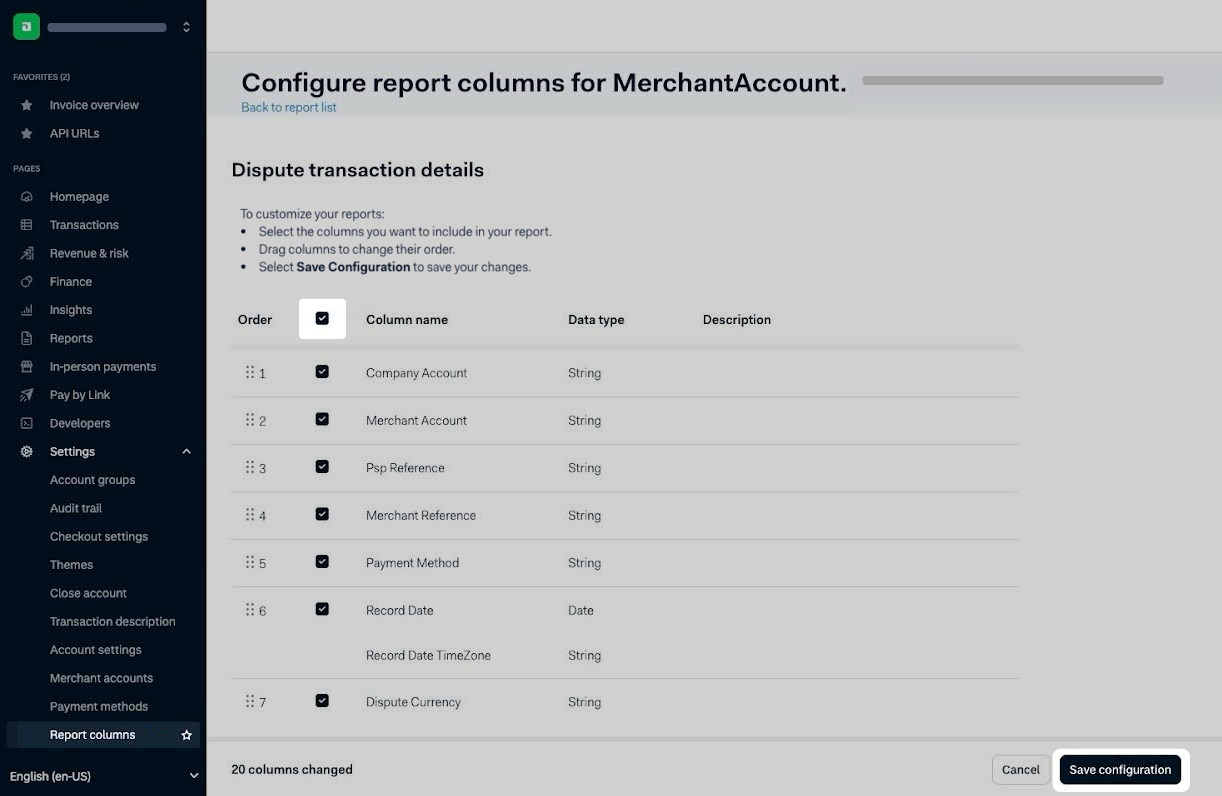
- Click on Save configuration to confirm your changes.
B. Enable SFTP data export
Send an email to Adyen support to enable SFTP data export.
Email details
- To: support@adyen.com
- CC: integrations@chargebackhit.com
- Subject: Request to enable SFTP data export & whitelisting
- Email body:Hello Adyen Support Team,
We’d like to enable SFTP data export of the Dispute transaction details report for our account as per your documentation (“Submit Dispute transaction details files through SFTP”). Could you please set this up and confirm the configuration details?
If you need any additional details from our side, we’re happy to provide them.
Thank you!
C. Configure automated report schedule
- In the Adyen live Customer Area, go to Reports.
- Find Dispute transaction details.
- Click on Generate > Automated (generate on schedule).
- Set Automatic generation On and choose .CSV file type.
- Click on Add report schedule.
- Set all checkboxes to Yes.
- Set the daily frequency.
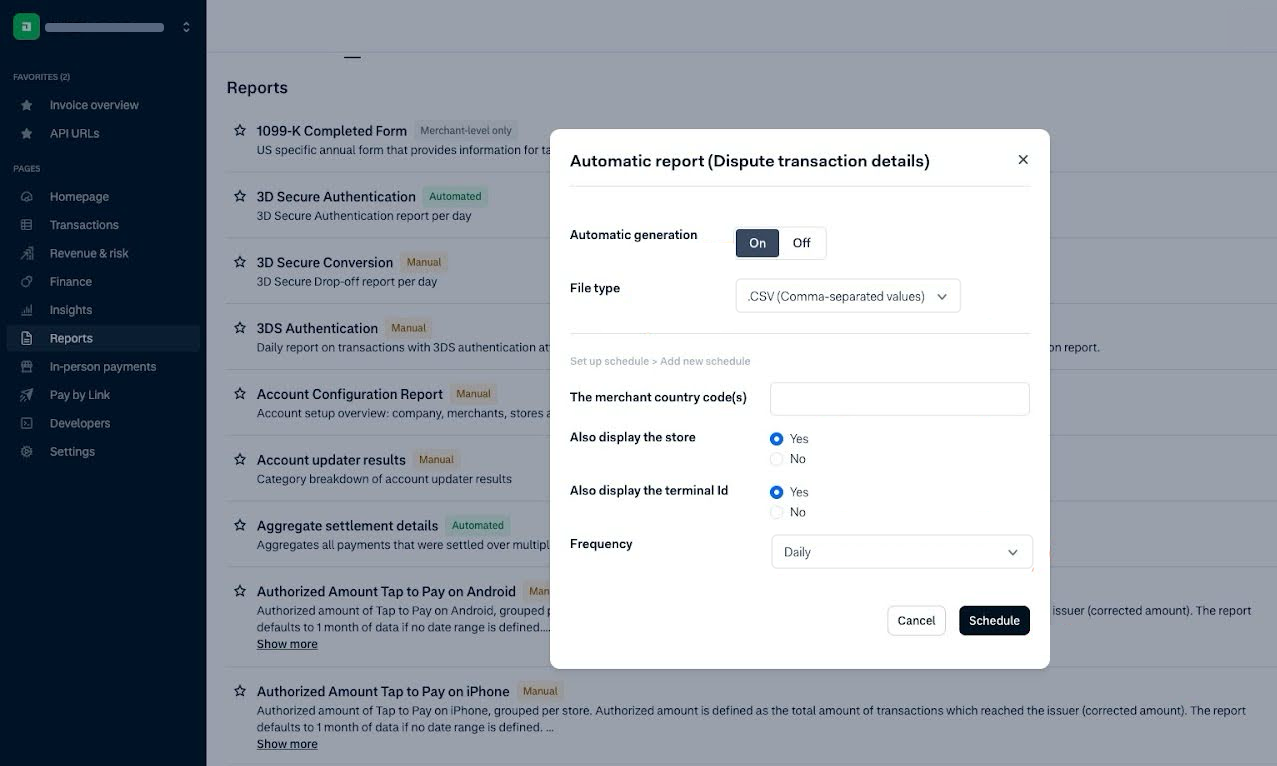
- Click on Schedule to confirm your changes.
Final checklist
Before completing the integration, make sure you have done the following:
- Created the API credential
- Found and noted your merchant account code
- Updated the required reports with additional fields
- Sent the email request to Adyen support, with integrations@chargebackhit.com in CC
- Set up the report schedule for automated exports
- Provided API key and merchant account code for the integration in Chargebackhit HUB
- Provided business infotmation by completing the
Guide
Business details contain your company information, policies, and supporting data for representment. Business details page